Affiliate Disclosure: As an Amazon Associate, we earn from qualifying purchases at no extra cost to you. We physically test every setup tip to provide unbiased biomechanical advice.
You finish a standard 8-hour workday, stretch your arms, and feel a sharp, burning tightness right at the base of your neck radiating into your shoulder blades. You blame your mattress or your stress levels. In reality, the culprit is staring right back at you: your computer monitor is placed at the wrong height.
Most remote workers simply unbox their screens, plop them onto the factory stand, and call it a day. This neglect forces your head into a constant forward tilt. Your head weighs roughly 10–12 pounds in a neutral position; however, for every single inch you crane it forward to look at a low screen, you double the mechanical load on your cervical spine. Achieving the proper ergonomic computer monitor height is not about workspace aesthetics—it is about immediate structural survival for your neck and spine.
💡 Real Setup Check Standard plastic monitor stands do not offer enough vertical clearance to save your neck. If you are using stacked books to prop up your screen, it is time to upgrade your infrastructure. Check out our field-tested guide on The Best Dual Monitor Arm for Heavy Monitors to dynamically unlock perfect eye-level alignment.
The Eye-Level Rule: How to Calculate Your Perfect Screen Height
To establish an environment that supports correct ergonomic sitting positions and allows you to prevent back pain while working, you must configure your display based on your sitting eye height, not a generic internet chart. Follow these physical calibrations:
1. The Top-Third Principle
Sit completely back in your office chair, anchoring your pelvis firmly against the backrest. Look straight ahead naturally without tilting your chin up or down. Your eyes should align exactly with the top one-third of your computer screen. When positioned this way, your natural resting gaze will landscape downward across the center of the display, completely relieving stress from your upper trapezius muscles.
2. The Arm’s Length Distance Test
Screen distance is just as critical as height. If your monitor is too far away, you will instinctively lean your neck forward, breaking your posture. Sit back, extend your arm straight out toward the screen. The tip of your middle finger should just barely graze the glass. This precise distance (roughly 20 to 30 inches) prevents optical convergence fatigue and keeps your shoulders locked in a safe, neutral posture.
 Perfect alignment: Eye level meets the top-third boundary of the display at an arm’s length distance. (Photo: ErgoSetupPro)
The Hidden Variable: Monitor Tilt Angle
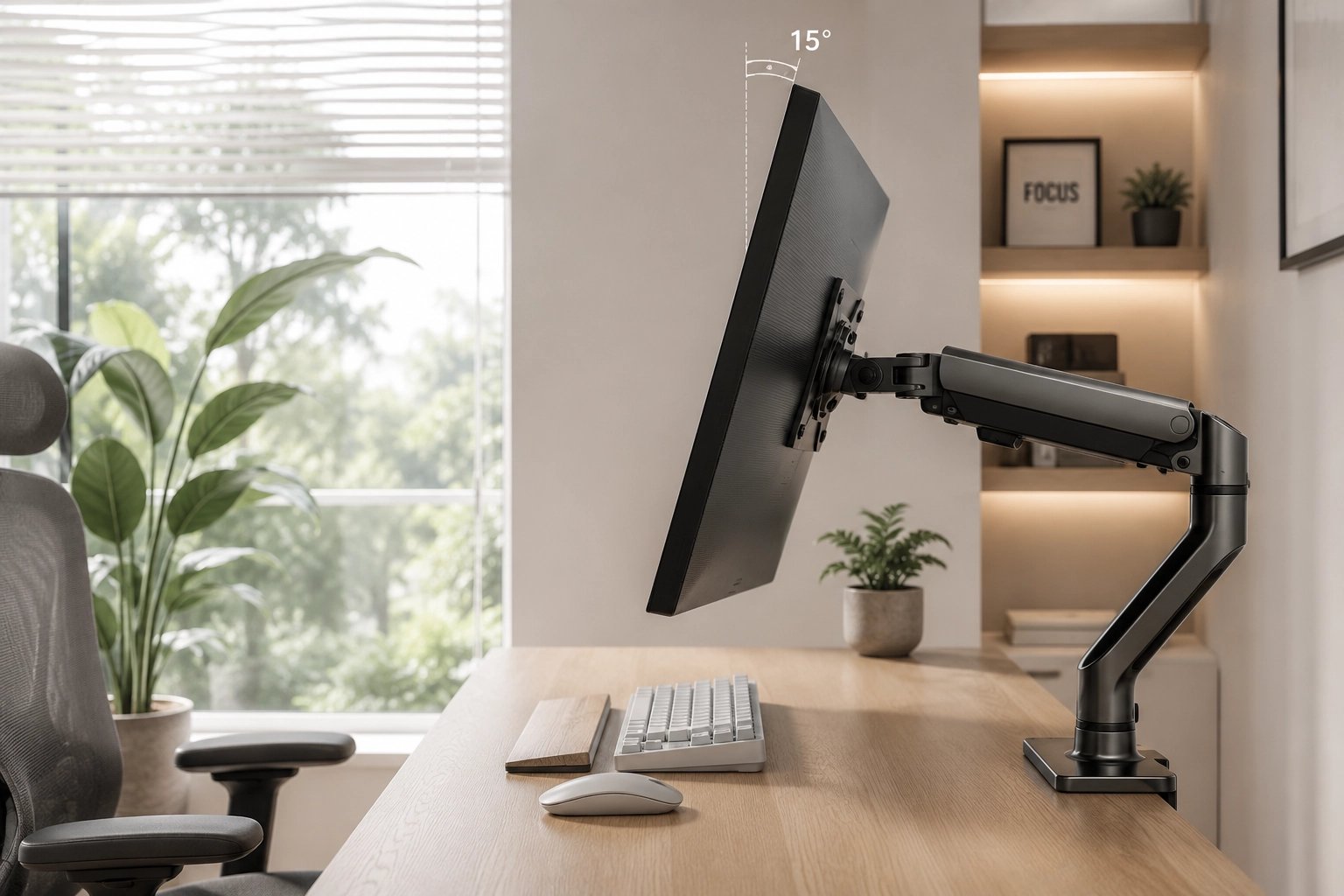
Even if the vertical height is pristine, a flat, vertical monitor causes subtle neck strain. Because your eyes inherently curve their field of vision along a natural arc, your screen needs a slight upward tilt.
Angle the bottom of your monitor slightly forward, tilting the top of the screen backward by 10 to 20 degrees. This subtle angle adjustment creates a uniform viewing distance from your eyes to both the top and bottom text lines, maximizing readability and providing instant lumbar spine relief at desk interfaces by keeping your torso perfectly upright.
The Posture Impact: Correct vs Incorrect Setup
- Screen rests too low, causing neck flexion (forward head posture).
- Shoulders roll forward, overstretching back muscles.
- Increased eye fatigue due to reflections from overhead lighting.
- Cervical spine sits in perfect neutral alignment.
- Chest opens naturally, improving oxygen intake and energy.
- Seamless coordination with other desk setup ergonomic tips.
Frequently Asked Questions (FAQ)
*Note: If you are using our premium theme layout, please use the Accordion Block to format the questions below for elite Google FAQ Schema indexing.*
Q: Should I change my monitor height if I switch to a standing desk?
A: Yes absolutely. When standing, your body dynamics alter slightly. Re-apply the Arm’s Length and Top-Third tests immediately after adjusting your standing desk to protect your cervical health.
Q: What is the rule for dual monitor setups?
A: If you use one primary screen and one secondary, keep the primary directly centered in front of you. If you utilize both screens equally (50/50 split), bridge them right at the center of your vision line, angled slightly inward in a V-shape to eliminate excessive side-to-side neck panning.